Window
Modes
Arrange your workspace with tabbed, tiling, or sliding layouts. Each session remembers its layout independently.
Overview
Every session has a layout mode that controls how terminals, panels, and sidebars are arranged. Click the layout dropdown in the session header to pick a mode, or press Mod+\ to cycle through them. In the jump dialog (Mod+G), hold the modifier key and press 1-4 to switch directly. Split is the fifth mode in the cycle.
Your chosen layout and all window arrangements are saved per session and restored when you relaunch the app. New sessions inherit the layout from the most recently active session.
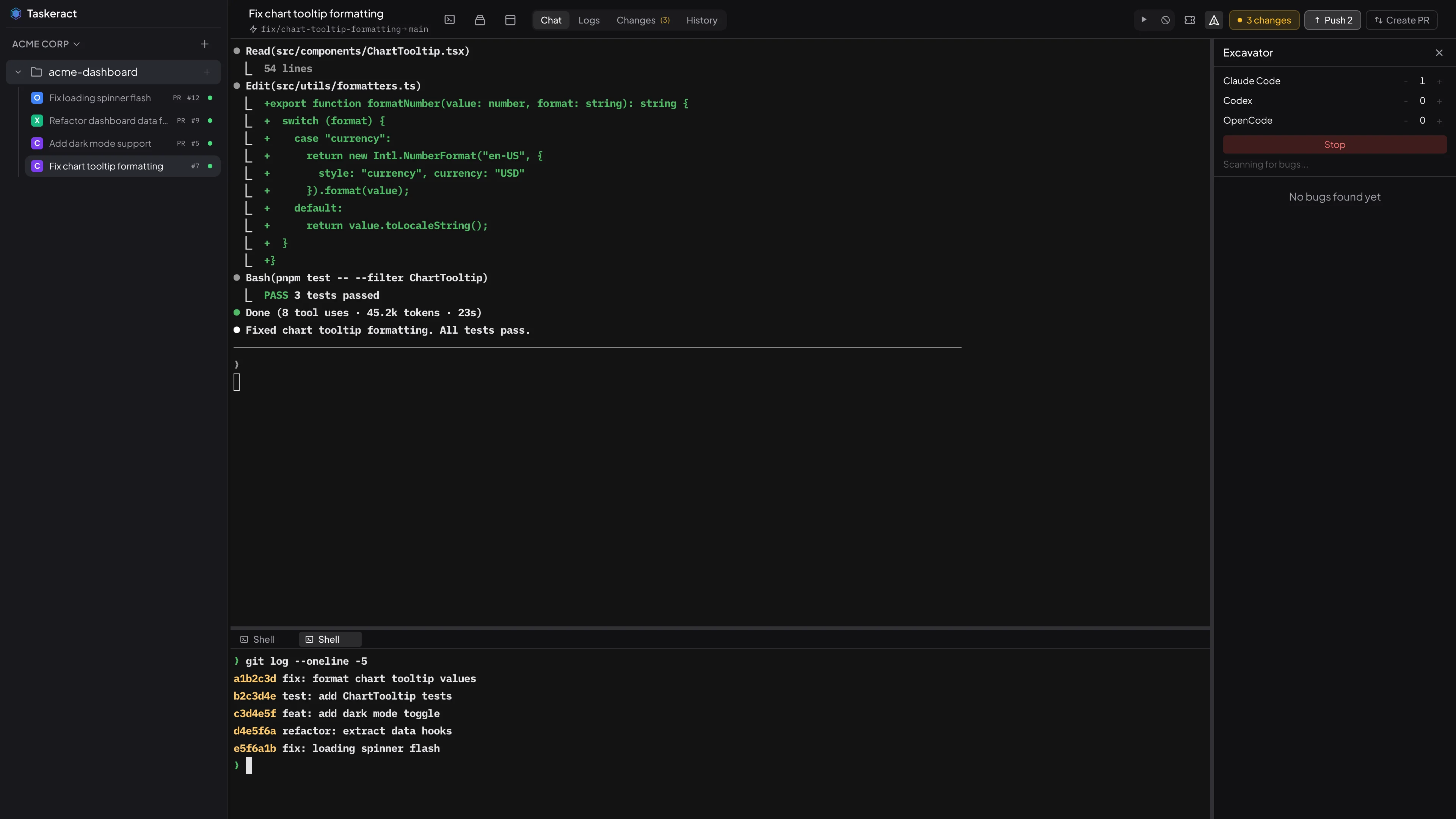
Tabbed
The default layout. One view is visible at a time, selected from the tab bar. Guest agent terminals appear as sub-tabs within the Chat tab. Shell terminals appear in a resizable bottom panel.
Use Mod+J/K to move focus between the main area and the shell panel, and Mod+H/L to move focus to and from sidebars. Mod+[/] cycles through terminal tabs. Shift+Mod+J/K resizes the shell panel and Shift+Mod+H/L resizes sidebars.
Tiling
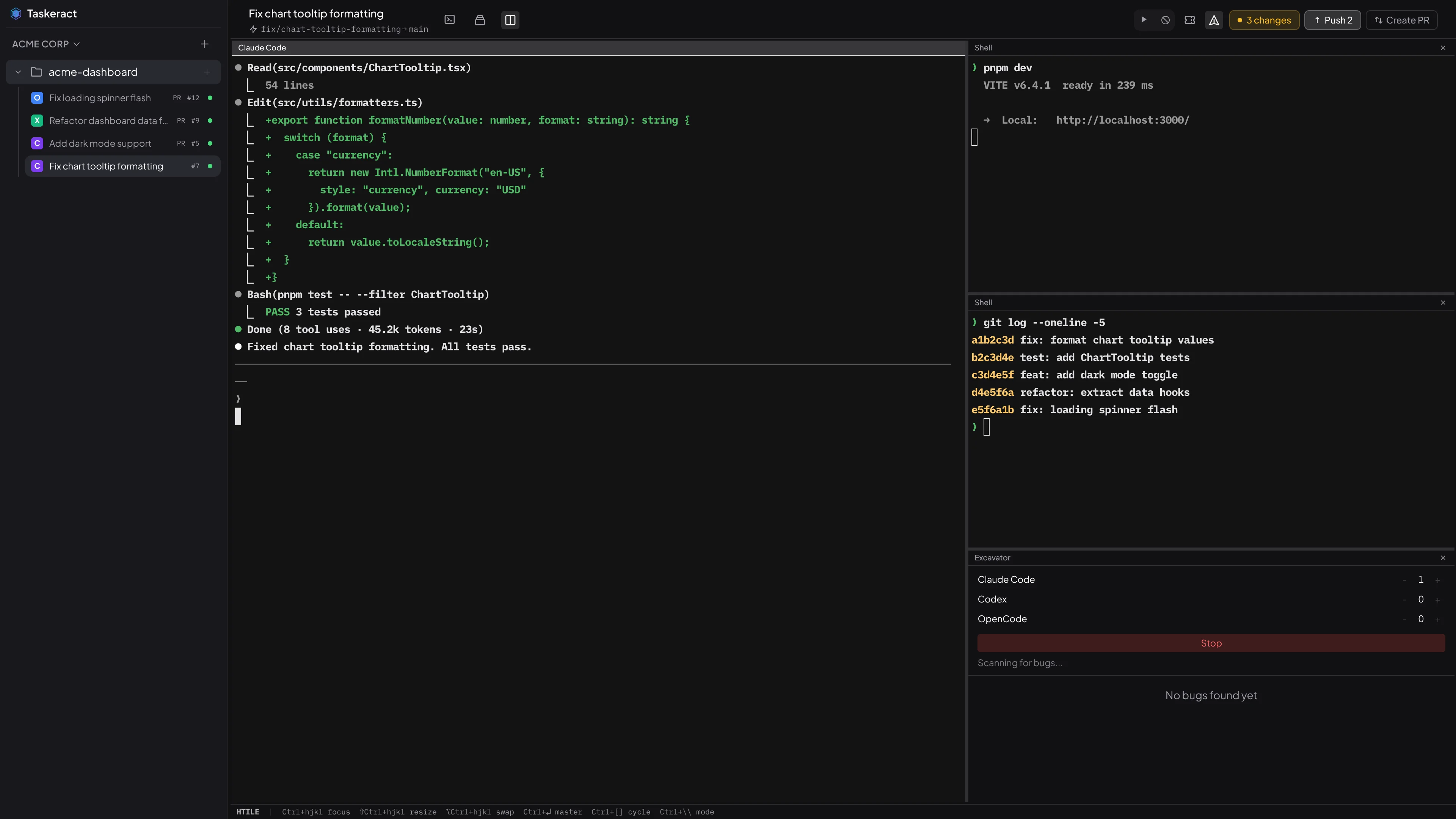
A master-and-stack layout that shows multiple windows at once. The primary terminal fills the larger pane, with other windows stacked beside it. Each window has a title bar that highlights when focused.
Drag the dividers between windows to adjust sizing, or use Shift+Mod+H/J/K/L to resize from the keyboard. Press Mod+Enter to swap any window into the master position, or use the swap modifier (Alt+Mod by default) with a direction key to swap in that direction.
When you toggle open a panel (Logs, Changes, History, or Review), it appears as a new window in the stack. Toggling it again removes it. Guest agents and shell terminals also appear as their own windows.
Sliding
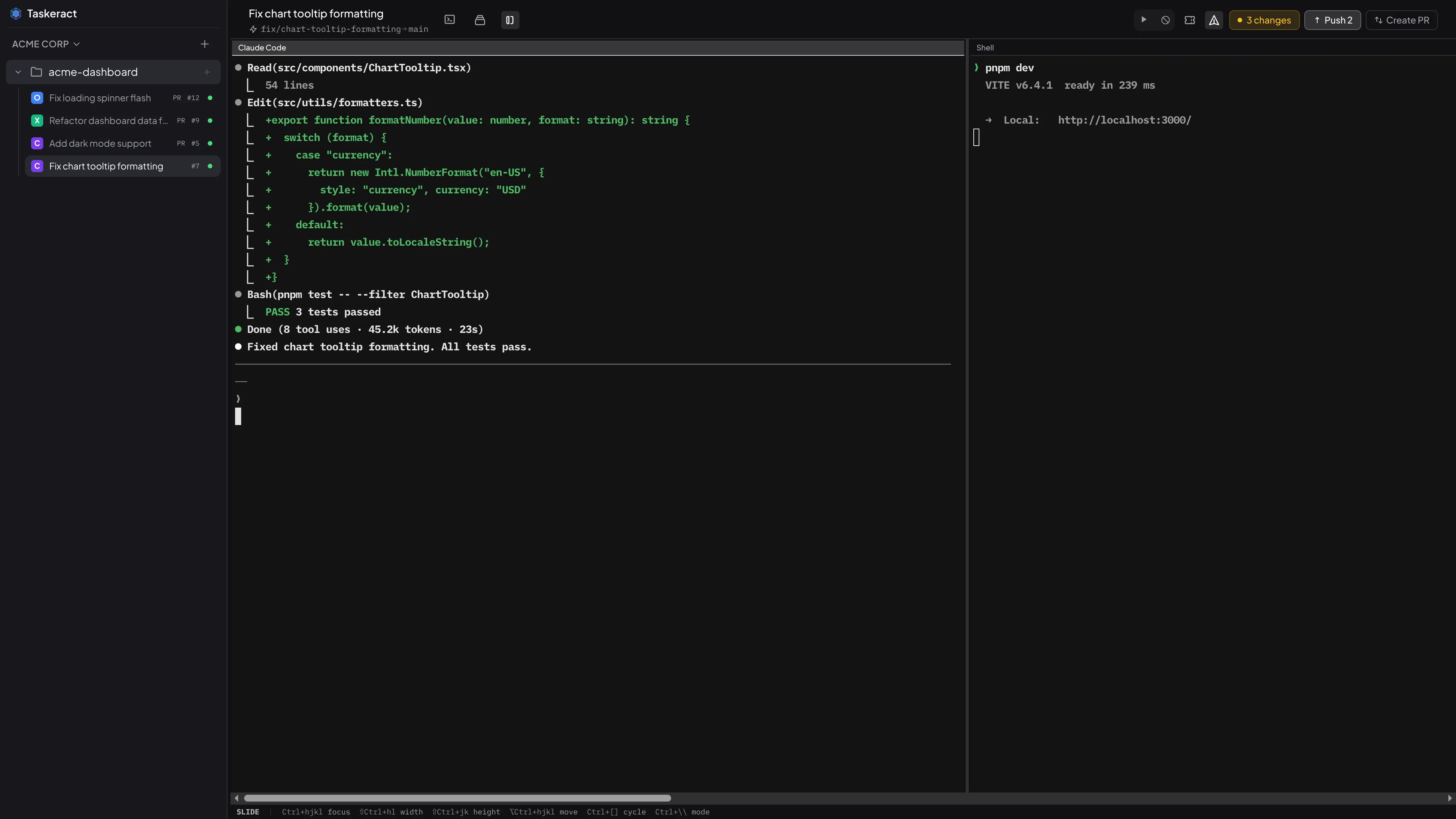
A horizontal scrolling strip where each window fills the full height of its row. Scroll left and right to bring different windows into view. Use Mod+H/J/K/L to move focus between windows and across rows.
Move windows between rows with Alt+Mod+J/K - new rows are created automatically and empty rows disappear. Drag the horizontal divider between rows to adjust their relative heights.
Split
Each window is a tab inside a tab group. You can split a group left, right, above, or below to make a new group, drag tabs between groups, and dock terminals into a collapsible bottom panel. Familiar from VS Code and IntelliJ.
In the jump dialog (Mod+G), pressing a number key opens that panel in the active tab group, focuses it if it's already open elsewhere in the tree, or closes it if it's already the active tab in the focused group - same toggle behavior as tiling and sliding modes. Holding Shift with the number always opens the panel in a new group split to the right of the active one. Mod+` opens a new shell terminal in the bottom panel; Shift+0 in the jump dialog opens one directly in the active tab group instead.
Mod+H/J/K/L moves focus between tab groups (and into or out of the bottom panel). Alt+Mod+H/J/K/L moves the active tab to the neighbor group in that direction - so a tab in the editor area can be moved to the bottom panel with Alt+Mod+J, and back up with Alt+Mod+K. Shift+Mod+H/J/K/L resizes the nearest divider. Mod+[ / Mod+] cycle the tabs in the active group.
Drag a tab onto another group's tab strip to move it. Drop a tab on a group's left, right, top, or bottom edge to create a new split in that direction. Drag a tab onto the bottom panel to dock it there.
Shell Terminals
Click the terminal icon in the session header to open a shell alongside your agent. Each click opens a new shell - when multiple shells are open, each one gets its own tab. Press Mod+` or use jump mode 0 to open a new one from the keyboard.
In tabbed mode, shells appear in a resizable bottom panel. In tiling and sliding modes, each shell is its own window with a close button in the title bar.
Shift-click the terminal icon to choose a different shell program. On Windows, you can pick between Command Prompt, PowerShell, and Git Bash. Your choice is remembered. Typing exit closes the shell automatically.
Panels & Sidebars
In tabbed mode, panels (Logs, Changes, History, Review) are selected from the tab bar, and sidebars (thread bar, issue sidebar, excavator) slide in from the right. Only one panel and one sidebar are visible at a time.
In tiling and sliding modes, every panel and sidebar becomes a standalone window that you can arrange alongside your terminals. Toggle panels from the icon buttons in the session header, or use jump mode numbers (Mod+G then 2-5 for panels, or [ / ] / + for sidebars). Click or press the same key again to close the window.
Shortcuts Reference
In tiling and sliding modes, a status bar at the bottom of the session shows the available keyboard shortcuts for the current mode. You can hide it in Settings > Appearance.
| Action | Default Shortcut | Modes |
|---|---|---|
| Toggle shell | Mod+` | All |
| Cycle layout mode | Mod+\ | All |
| Focus previous / next window | Mod+[ / ] | All |
| Directional focus | Mod+H/J/K/L | All |
| Resize in direction | Shift+Mod+H/J/K/L | All |
| Swap/move in direction | Alt+Mod+H/J/K/L | Tiling, Sliding |
| Swap with master | Mod+Enter | Tiling |
The modifier combos for focus, resize, and swap/move are each independently configurable. The directional keys can also be changed. See Configuration > Keybindings for details, or Keyboard Shortcuts for the full reference.