Keyboard
Shortcuts
Vim-style navigation, jump mode, and shortcut tables for every view.
Keyboard Shortcuts
Taskeract supports configurable keyboard shortcuts for common actions. The default modifier key is Cmd on macOS and Ctrl on Linux/Windows. Both the shortcuts and the modifier key can be customized in Configuration > Keybindings. Below are the default bindings.
Numbered Shortcuts in Dialogs
Action dialogs that present a list of choices (such as the agent picker or session create wizard) show a number next to each option. Press the corresponding number key to select it instantly instead of clicking.
Vim-style Navigation
All navigable views (Changes, History, Logs, Git History Viewer, Blame, Issues, PR Review, Excavator) support vim-style motions with numeric prefixes. Type a number before a motion to repeat it - for example, 5j moves down five rows. Additional motions: gg jumps to the first row (or {n}gg to row n), G jumps to the last row (or {n}G to row n), 0 jumps to the first row, and % jumps to the line containing the matching bracket, parenthesis, or brace (in views with code content). The pending count is shown in the status bar as you type.
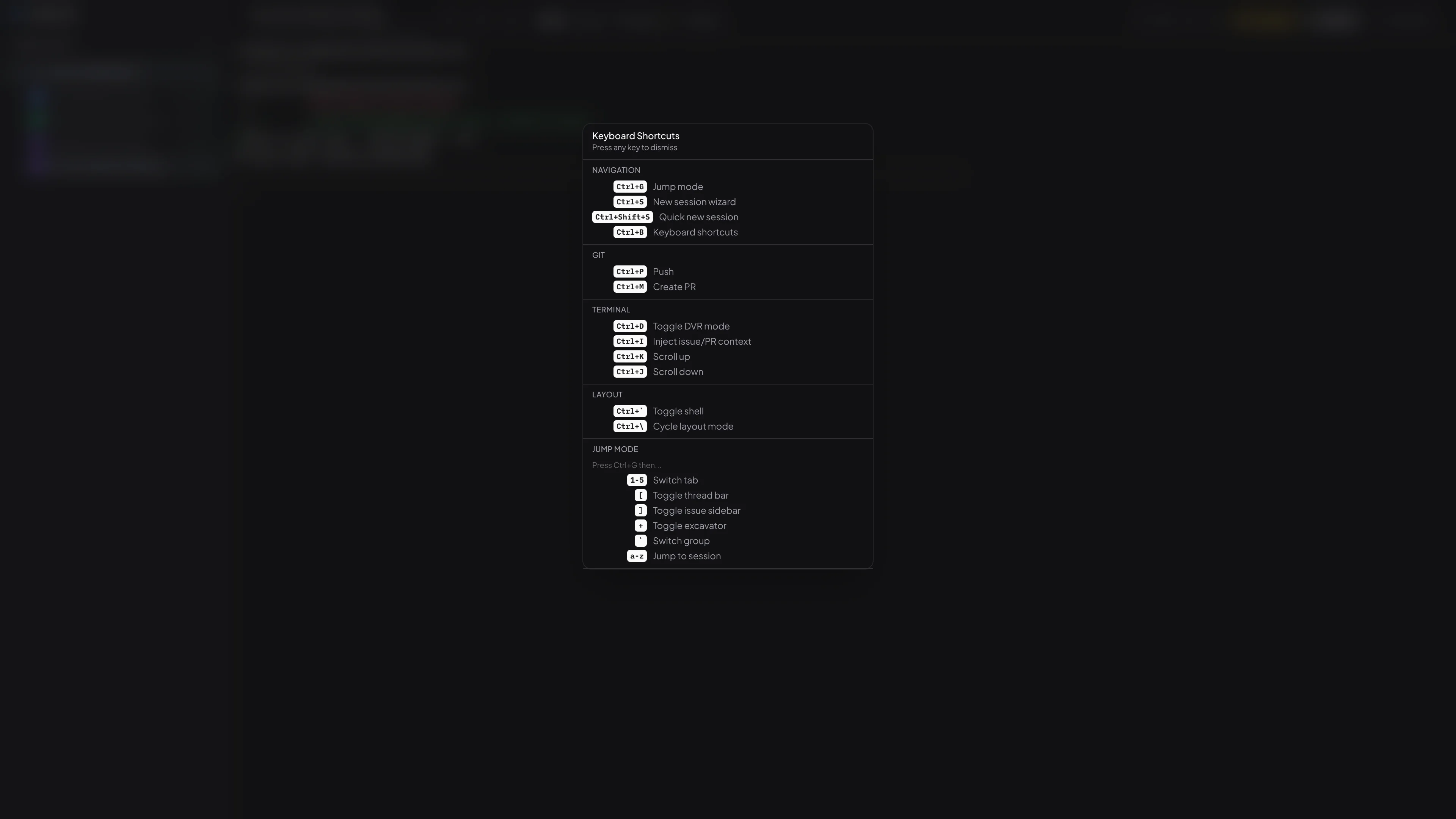
Global Shortcuts
| Action | Default Shortcut |
|---|---|
| New session wizard | Mod+S |
| Quick new session | Mod+Shift+S |
Save a checkpoint of the current session (tabbed layout; tile/slide layouts use Mod+K for focus-up) | Mod+K |
| Jump mode | Mod+G |
| Toggle settings | Mod+, |
| Toggle DVR mode | Mod+D |
| Keyboard shortcuts | Mod+B |
| Push | Mod+P |
| Create PR / Merge & Push / Merge PR | Mod+M |
| Update from base (when behind) | Mod+U |
Jump Mode
Jump mode (Mod+G) acts as a leader key for quick keyboard navigation. Press a key to perform an action, or Esc to cancel. The panel shows which keys are active based on the current session state.
| Key | Action |
|---|---|
1–5 | Switch tab - 1 Chat, 2 Logs, 3 Changes, 4 History, 5 Review. In tiling and sliding modes, these toggle the panel as a separate window instead of switching tabs. Unavailable tabs appear dimmed. When viewing Issues, 1–9 switch to the corresponding status filter instead. |
0 | Open a new embedded shell terminal in the session. |
\ | Toggle the Git History Viewer for the current project's repository. Press again to return to the previous session. |
6–9 | Launch a guest agent. Each configured terminal agent is assigned a number. Only shown when the primary agent is running. |
, | Push the session branch to the remote. |
. | Create PR (PR mode) or Merge & Push (merge mode). |
' | Rebase onto the base branch (when behind). |
/ | Merge from the base branch (when behind). |
` | Switch project group. Opens a sub-picker listing your groups - press a letter to filter the sidebar, then continue in jump mode. Only available when sidebar grouping is enabled. |
; | Toggle the Issues view for the current project. Press again to return to the previous session. |
- | Toggle Project Properties for the current project. Press again to return to the previous session. |
[ | Toggle the PR thread bar sidebar. Only available when the current session is linked to a pull request and the Review tab is not active (the Review tab already shows threads inline). |
] | Toggle the issue sidebar. Only available when the current session is linked to an issue. |
= | Open the project in your preferred external editor (VS Code, Cursor, Zed, etc.). When viewing Issues, toggles the "Only mine" filter instead. |
+ | Toggle the Excavator sidebar for automated bug scanning. Available in any session. |
Mod+1–Mod+4 | Switch window layout - Mod+1 Tabbed, Mod+2 Horizontal tiling, Mod+3 Vertical tiling, Mod+4 Sliding. Hold the modifier key while in jump mode. |
Shift+1–Shift+5 | Split mode only: open the chosen panel in a new vertical tab group split to the right of the active one. Plain 1–5 still opens it in the active group. |
Shift+0 | Split mode only: spawn a new shell terminal in the active editor tab group instead of the default bottom panel. |
a–z | Jump to a session by letter. Letters are assigned to sessions in sidebar order. |
Git keys are shown or dimmed based on the current state (e.g., Push is only active when there are commits ahead of the remote).
Changes View Shortcuts
| Action | Default Shortcut |
|---|---|
| Navigate up / down | ↑ / k, ↓ / j (prefix with count, e.g. 5j) |
| First / last row | gg / G (or {n}gg / {n}G for row n) |
| Matching bracket | % |
| Focus file tree | ← / h (from the diff pane) |
| Focus diff viewer | → / l (on a file in the tree) |
| Expand folder | → / l (cursor on a collapsed folder) |
| Collapse folder | ← / h (cursor on an expanded folder) |
| Previous change | , |
| Next change | . |
| Visual mode | v |
| Copy to clipboard | Space / y |
| Find | / or Mod+F |
| Find next | n |
| Find previous | N (Shift+n) |
| Toggle full file / changes only | f |
| Toggle Semantic / Unified diff | t in a session's Changes tab; Shift+D in git status, commit detail, and PR review |
| Clear find | Escape |
| Exit visual mode | Escape |
Conflict Resolution Shortcuts
When a conflicted file is selected in the Changes view, the following shortcuts become available. See Merge Conflicts for details.
| Action | Default Shortcut |
|---|---|
| Accept Ours | o |
| Accept Theirs | t |
| Agent resolve | a |
| External merge tool | e |
| Mark resolved | r |
| Agent review all conflicts | Shift+A |
History & Logs View Shortcuts
The History tab and Logs tab share the same navigation shortcuts:
| Action | Default Shortcut |
|---|---|
| Navigate up / down | ↑ / k, ↓ / j (prefix with count, e.g. 10j) |
| First / last row | gg / G (or {n}gg / {n}G for row n) |
| Visual mode | v |
| Copy to clipboard | Space / y |
| Find | / or Mod+F |
| Find next | n |
| Find previous | N (Shift+n) |
| Clear find | Escape |
| Exit visual mode | Escape |
| Switch tab (Logs only) | h / l |
Git History Viewer Shortcuts
The Git History Viewer supports vim-style navigation with a two-pane layout (commit graph and commit detail).
| Action | Default Shortcut |
|---|---|
| Navigate up / down | j / k (prefix with count) |
| First / last commit | gg / G |
| Focus graph pane | h |
| Focus detail pane | l |
| Search commits | / |
| Refresh | r |
| Visual mode | v |
| Copy to clipboard | Space / y |
| Close | Escape |
Within the detail pane:
| Action | Default Shortcut |
|---|---|
| Toggle file list / diff focus | Tab or Space |
| Switch Changes / Tree tab | h / l (file focus) |
| Toggle commit message | z |
| Open blame | Enter (file focus) |
| Open file history | Backspace (file focus) |
| Previous / next hunk | , / . (diff focus) |
| Find in diff | Mod+F (diff focus) |
| Matching bracket | % (diff focus) |
PR Review Shortcuts
The PR review view (standalone or embedded in the session Review tab) supports full keyboard navigation across its three panes.
| Action | Default Shortcut |
|---|---|
| Switch pane left / right | h / l (file list ↔ diff ↔ checklist) |
| Navigate files (file pane) | j / k (prefix with count, e.g. 5j) |
| First / last file | gg / G |
| Select file & open diff | Enter (file pane) |
| Navigate diff | j / k (diff pane, prefix with count) |
| First / last diff line | gg / G (diff pane) |
| Previous / next hunk | , / . (diff pane) |
| Matching bracket | % (diff pane) |
| Visual mode | v (diff pane) |
| Copy to clipboard | Space / y (diff pane) |
| Find | / or Mod+F (diff pane) |
| Find next / previous | n / N (diff pane) |
| Toggle full file / changes only | f (diff pane) |
| Add comment at cursor line | c (diff pane) |
| Toggle PR description | d (diff pane) |
| Navigate threads (checklist pane) | j / k (prefix with count) |
| First / last thread | gg / G |
| Open thread detail | Enter (checklist pane) |
| Open thread to mark ready | r (checklist pane, open threads) |
| Open thread to sign off | o (checklist pane, ready threads) |
| Open thread to reject | x (checklist pane, ready threads) |
| Cycle filter tab | f (checklist pane, cycles All → Open → Ready → Done) |
| Submit as issue / reply | Mod+Enter |
| Submit as comment (informational) | Mod+Shift+Enter |
| Close thread detail / description / view | Escape |
Issues View Shortcuts
The Issues view supports vim-style navigation with numeric prefixes.
| Action | Default Shortcut |
|---|---|
| Navigate up / down | j / k (prefix with count, e.g. 5j) |
| First / last issue | gg / G |
| View issue details | Enter |
| Create new issue | c |
| Open issue editor | e |
| Save edit / submit form | Mod+Enter |
| Focus search | / |
| Start or go to session | s |
| Close detail / close editor / close issues view | Escape |
Mod refers to Cmd on macOS and Ctrl on Linux/Windows. The modifier key itself can be changed in Configuration > Keybindings.
Excavator Shortcuts
The Excavator sidebar supports vim-style navigation. Click the sidebar to focus it, then use the following keys.
| Action | Default Shortcut |
|---|---|
| Navigate up / down | j / k (prefix with count, e.g. 5j) |
| First / last bug | gg / G |
| View bug details | Enter |
| Toggle checkbox | x |
| Dismiss focused bug | d |
| Promote to tracker | p |
| Close detail / close sidebar | Escape |
DVR Playback Shortcuts
When DVR mode is active (Mod+D to enter), these shortcuts control playback:
| Action | Default Shortcut |
|---|---|
| Play / Pause | Space |
| Skip back 10s | ← |
| Skip forward 10s | → |
| Decrease speed | [ |
| Increase speed | ] |
| Previous chapter | , |
| Next chapter | . |
| Exit DVR / Jump to live | Escape |
Window Management
These shortcuts control session window layouts. Each action group - focus, resize, and swap/move - uses its own modifier combo with the directional keys (H/J/K/L or arrows). By default, Mod alone moves focus, Mod+Shift resizes, and Mod+Alt swaps or moves windows. All three combos are fully configurable in Configuration > Keybindings, so you can avoid conflicts with your desktop window manager. In tiling and sliding modes, a status bar at the bottom shows the available keys for the current mode.
General (all modes)
| Action | Default Shortcut |
|---|---|
| New shell terminal | Mod+` |
| Cycle layout mode | Mod+\ |
| Focus previous window | Mod+[ |
| Focus next window | Mod+] |
Tabbed mode navigation
In tabbed mode, directional keys move focus between the main area, the shell panel, and sidebars.
| Action | Default Shortcut |
|---|---|
| Focus shell panel / main area | Mod+J / K |
| Focus sidebar / back to main | Mod+L / H |
| Resize shell panel | Shift+Mod+J / K |
| Resize sidebar | Shift+Mod+H / L |
Directional focus (tiling + sliding)
| Action | Default Shortcut |
|---|---|
| Focus left / down / up / right | Mod+H / J / K / L |
| Swap with master (tiling) | Mod+Enter |
Resize (tiling + sliding)
| Action | Default Shortcut |
|---|---|
| Grow/shrink in direction | Mod+Shift+H / J / K / L |
Swap / move (tiling + sliding)
| Action | Default Shortcut |
|---|---|
| Swap/move window in direction | Mod+Alt+H / J / K / L |
The modifier combos for focus, resize, and swap/move are each independently configurable. You can set them to any combination of mod, ctrl, meta, alt, and shift - for example, ctrl+shift or just alt. The directional keys and the status bar visibility can also be customized. See Configuration > Keybindings for details.