Sessions
Create, resume, stop, and delete agent sessions. Launch guest agents for a second opinion.
Sessions
A session is a running instance of an agent working inside a project. Each session gets its own isolated workspace on a branch chosen by the active strategy.
Creating a Session
Press Mod+S from anywhere to open the New Session wizard. Pick a project, choose an agent, then optionally attach an issue, pull request, or branch. In the context step, choose a branch strategy (feature, bugfix, or hotfix) to set the branch prefix and base. When the session starts, a toast tells you to press Mod+I to inject the attached context into the agent's prompt.
When you confirm, Taskeract fetches remote refs and provisions a workspace on a new session branch from the strategy's base (typically origin/{development_branch}, or origin/{production_branch} for hotfixes). PR launches reuse the PR's head branch directly; branch launches reuse the branch you selected. Branch ownership is exclusive: if an active session already owns that branch, Taskeract switches back to it instead of creating another one. The development and production branches come from project configuration or remote auto-detection when not set explicitly.
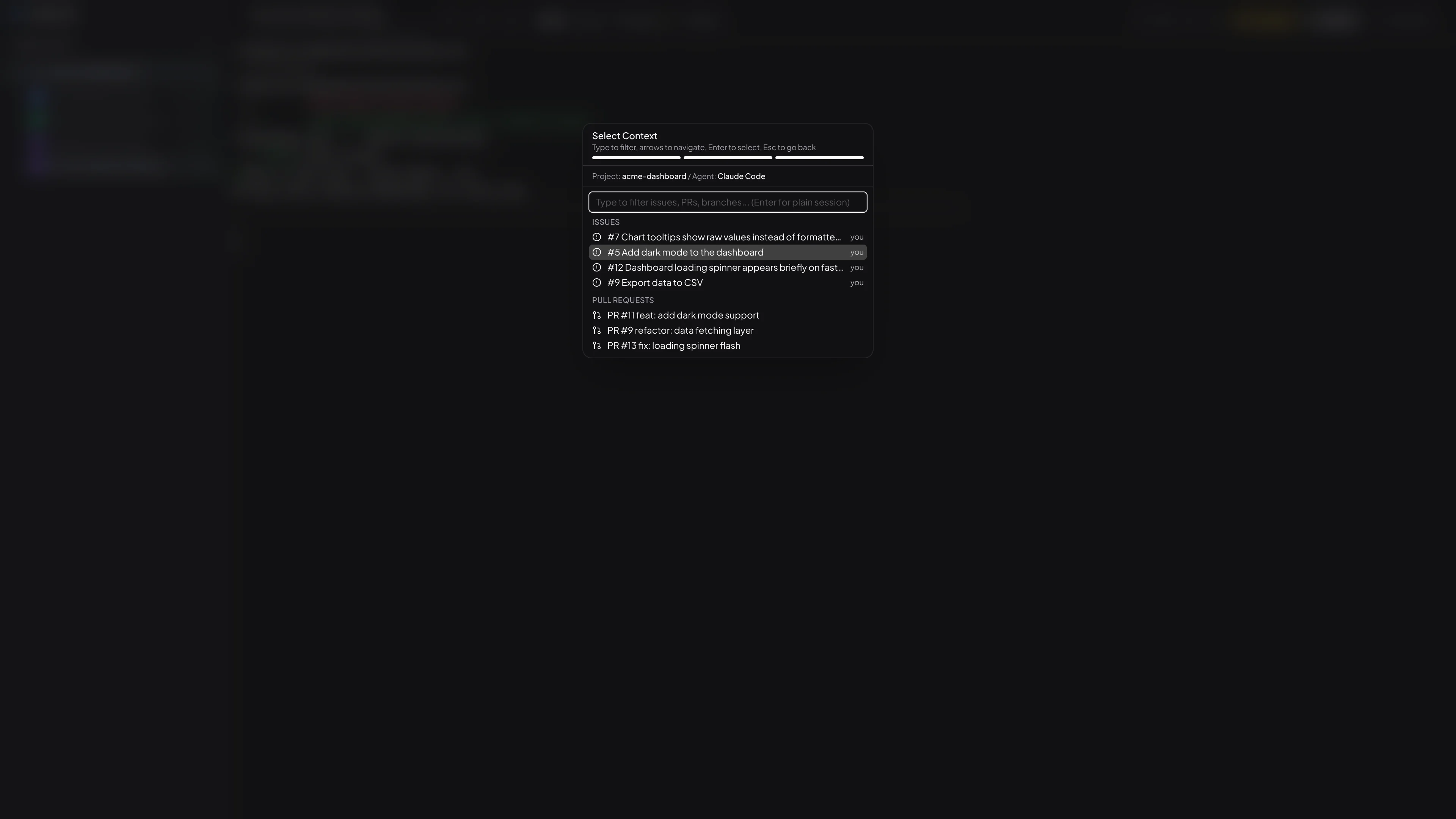
You can also create a session from a pull request in the sidebar, from an issue in the Issues view, or from a remote branch in the Git History viewer. PR shortcuts attach to the PR's head branch; branch shortcuts attach to the chosen branch; issue shortcuts derive a fresh branch from the strategy's prefix.
On Pro plans, each agent in the picker has a shield icon you can click to start the session in sandbox mode, restricting the agent to only the project's files and approved network destinations.
Opening a Session from Anywhere
With session sync, sessions are not just yours. Every saved session is available from any other device on your account and from anyone in your organization. The team angle is the killer one: when a teammate starts a session against a PR or an issue, you can open that exact session and see the agent's full conversation, the timeline of decisions, and the recording.
Reviewing a pull request? Click the agent in the sidebar's PR menu. If the actual session that wrote the PR is already available through session sync, the agent picker shows a small (sync) hint next to the agent name - one click opens that existing session instead of starting a new one. The same applies in the Issues view: the agent picker for an issue shows the existing session if a teammate has been working on it.
For sessions on arbitrary branches that did not start from a PR or issue, the project's "+" menu in the sidebar has an Open Existing Session... entry that lists every session for that project, sorted by most recent activity. The list shows the session title, branch, and which agent it was created with. Sessions whose agent is not installed on this machine appear in the list but are not selectable, with a tooltip explaining which agent is missing. Sessions you already have open on this device are also dimmed out.
When you pick a session, it appears in the sidebar with a small syncing indicator while Taskeract pulls saved checkpoints, materializes the workspace at the latest checkpoint, and restores the agent's conversation history in the background. The session opens automatically once that catch-up finishes. From there, any new checkpoints saved on any device flow into yours continuously. If Taskeract can't reach the project's remote, every session row in that project shows a small warning so you know cross-device updates are stale until the next successful sync.
In-flight uncommitted work stays on the device where it was taken. WIP captures (the auto-saves taken when you switch checkpoints with pending changes) are local only. With the Pro add-on, saving a checkpoint adds work to the timeline that travels between devices and teammates; use Publish when you want the session branch itself to reflect a specific checkpoint.
When session sync is enabled, session state lives alongside your code in the same Git repository on GitHub, GitLab, or Bitbucket. Saved checkpoints, the workspace at each checkpoint, and the cross-device timeline all ride on the Git hosting you already use - nothing extra to host, no separate sync service to trust. Anyone on your team who already has access to the repo can pick up a session on their own machine. Without session sync, the full checkpoint graph stays on the device where it was created; publishing the session branch still works normally.
Deleting a session from the app removes it from the device you delete it on. Your other devices, and anyone else on the team, keep the session in their list and can keep working on it. Once every device that had the session has deleted it, the session moves into a soft-deleted state in the repo, where it's still recoverable from any device's Deleted Sessions list. Permanently deleting it removes the data from the repo entirely, and any device that still has it sees it disappear on the next sync.
Session Naming
Branch-creating sessions are assigned generated branch names like feature/swift-falcon. Reused branch strategies keep the source branch name instead. The suffix (for example swift-falcon) is used as the default session title in the sidebar and the session header when a branch-backed workspace exists. Headless workflows rely on the session title or workflow context instead. To rename a session, hover over the title in the session header and click the pencil icon. You can also rename the branch itself by clicking the branch name in the header; this is allowed until the session is published, after which the branch name is locked.
Once you have had a real exchange with the agent, Taskeract suggests a short, descriptive title for the session based on the conversation and quietly renames it for you. The suggestion only fires once per session, only when the title is still the generated default, and you can rename freely afterwards - the rename you choose always sticks.
Embedded Terminals
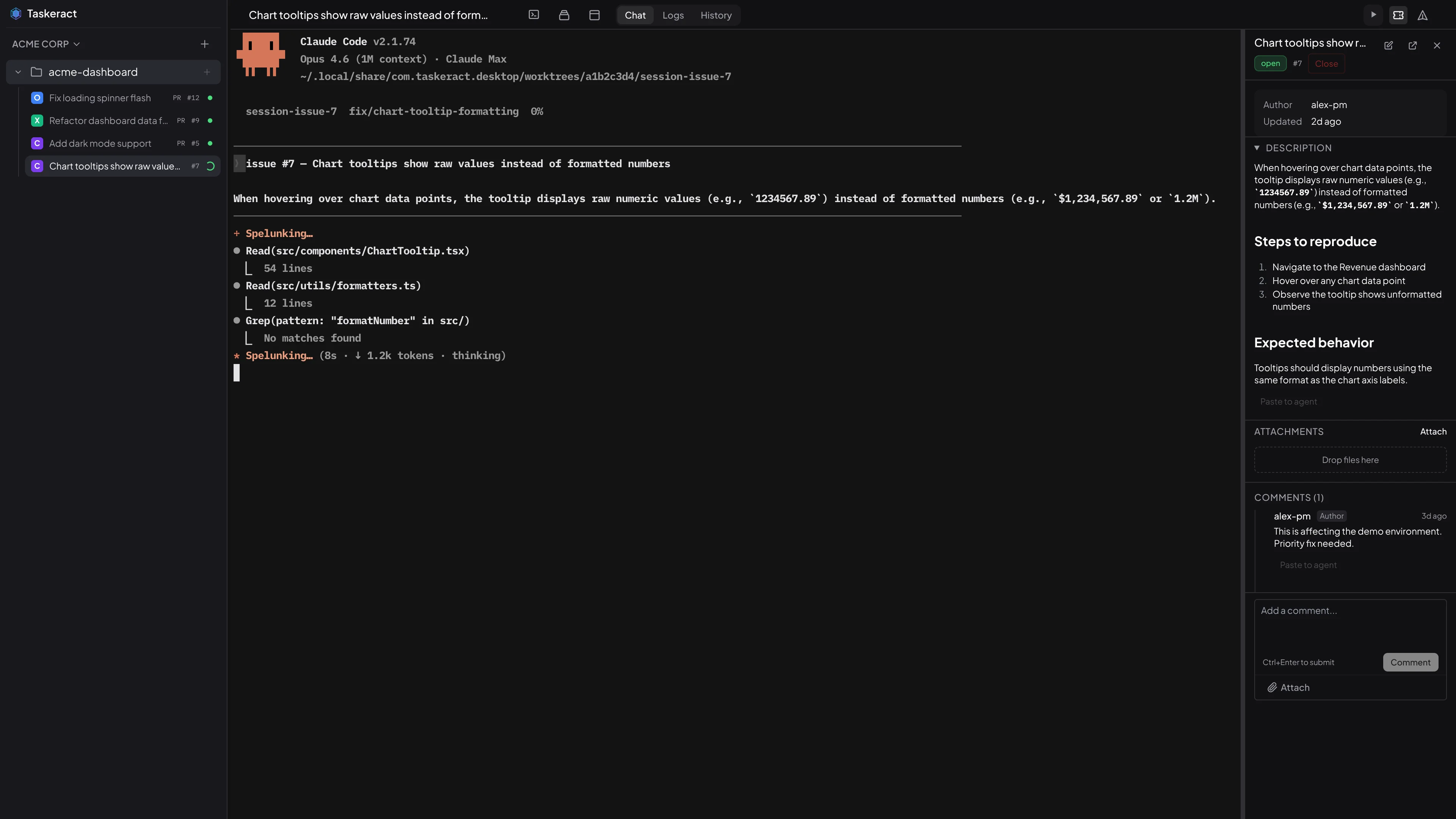
Workspace-backed sessions run in a full embedded terminal with PTY support. Agents render exactly as they would in your regular terminal - including colors, TUI interfaces, and interactive prompts. Terminal scrollback is preserved per session and restored when switching tabs. A separate History tab captures every line of output as clean, structured text - including content lost to screen clears and progress bar overwrites - so nothing is ever lost. Headless workflows skip terminal provisioning entirely.
Resuming Sessions
Sessions persist across application restarts. When you reopen a session, Taskeract uses the agent's own native resume capability to restore its conversation state. How much context the agent retains depends entirely on the agent - Taskeract passes the session identifier through and the agent handles the rest.
How much context an agent retains on resume depends on the agent itself. For best results, start a new session when you move on to a new task. The History tab captures a complete record of terminal output regardless of what the agent remembers.
Permissions
When an agent requests permission (e.g., to write files or run commands), the session's status indicator turns yellow. The system tray icon also shows a yellow dot so you can tell at a glance that a session needs attention, even when Taskeract is in the background.
External Editor
The session toolbar shows an editor button (code icon) when a supported editor is detected on your system and the active strategy provides an execution workspace. Click it to open the session's working directory in your default editor. Shift+click the button to pick a different editor - your choice becomes the new default. Supported editors include VS Code, Cursor, Windsurf, Zed, IntelliJ IDEA, WebStorm, Sublime Text, Neovide, Neovim, Vim, and Emacs. You can also open the editor via Jump Mode (Mod+G then =).
Stopping Sessions
Right-click an idle session and choose Stop Session to terminate the agent without deleting the session. The workspace, branch, and scrollback are preserved. Click the session again to relaunch the agent.
Stop is only available when the agent is idle or in an error state - it is disabled while the agent is actively working or waiting for a permission response.
Protected Branches
Sessions can't be created on a project's development or production branch. This keeps your integration base safe from agent changes.
If you have a session pointing at one of these branches (from before this protection existed, or because you renamed your dev or production branch in settings), it appears in the sidebar with a red marker and can't be opened. Click it to see a single Safe Delete action that removes the session from every device that opened it, while leaving the branch alone.
Terminal & Logs
Embedded Agent Terminals
Workspace-backed agent sessions run inside embedded terminal emulators with full PTY support. This means you get the same experience as running agents in your regular terminal - colors, cursor movement, TUI rendering, and interactive prompts all work as expected. Scrollback is preserved per session and restored instantly when switching between tabs. Selecting text with the mouse automatically copies it to the clipboard - the selection clears and a brief confirmation appears so you know it worked.
History Tab
Terminal sessions have a History tab that captures every line of terminal output as ANSI-stripped, timestamped text. Unlike the live terminal view, the History tab preserves content that would otherwise be lost to screen clears, progress bar overwrites, and TUI redraws. History is persisted to disk, so it survives application restarts and is available even after a session's PTY has been killed.
The History tab supports the same vim-style keybindings as the Changes and Logs views: j/k to navigate, v for visual selection, and y or Space to yank selected lines to the clipboard.
The session header shows a yellow n changes button next to Publish whenever there is uncommitted work. Clicking it - or pressing Mod+K - opens a composer with a title field (pre-filled with the current date and time, selected so you can type over it) and an optional description. Enter saves the checkpoint, Escape cancels. On Pro, when you open the same session from another device the full checkpoint history comes with it. When the agent proposes a checkpoint through its own tooling, the same composer opens pre-filled with the agent's title and description, with a "Pre-filled by agent" hint - edit freely before saving.
The session's History panel shows every checkpoint for the session in a graph or list view. The leftmost node in the graph is the project's base branch - you can click it just like any other checkpoint to reset the session to a clean slate from that branch. Click any other checkpoint to Restore the session to that point. Restoring and then making changes creates a new branch in the timeline automatically. Without session sync, those branches remain local to this device. The DVR scrub bar above the terminal also marks every checkpoint as a tick so you can see where each restore point lines up with the recording.
If you switch checkpoints with uncommitted work in the workspace, the work is saved automatically as a WIP checkpoint on the abandoned line, so it stays visible in the timeline as the tip of the path you walked away from. Click the WIP node any time to bring those changes back; the restore consumes the WIP so you do not end up with stale rescue points piling up. WIP checkpoints stay on your machine and never sync across devices. Any commands you had running on the play button are stopped before the switch, and the project's init commands run again afterwards so dependencies stay in step with whatever the new checkpoint's manifests describe.
Shell Access
Sessions with an execution workspace have a terminal icon that opens an embedded shell in the session's workspace. Click it multiple times to open additional shells. You can also press Mod+` or use jump mode 0 to open a new shell from the keyboard. Shift-click the icon to choose a different shell program. Headless workflows do not expose shell access. See Shell Terminals for details.
Logs View
For projects with startup commands configured, the Logs tab shows their output. Logs can be viewed per command (separate tabs) or combined into a single stream. You can navigate the logs using the keyboard and copy items to the clipboard.
When a command fails to start or exits unexpectedly, the failure appears as a highlighted line in the logs. An error badge also appears in the session header - clicking it jumps straight to the failed command's output, and Shift-clicking it retries all failed init commands. Clearing the logs dismisses the badge.
Image Pasting
Paste images from your clipboard directly into agent terminals. Agents that support image input - like Claude Code - will see the image alongside your text prompt and can reference it in their response.
Pasting Images
Press Mod+V or use your system paste shortcut while the terminal is focused. If the clipboard contains an image, a thumbnail preview appears in the bottom-right corner of the terminal. Multiple images stack vertically. Each preview shows the image dimensions and a close button to remove it before sending.
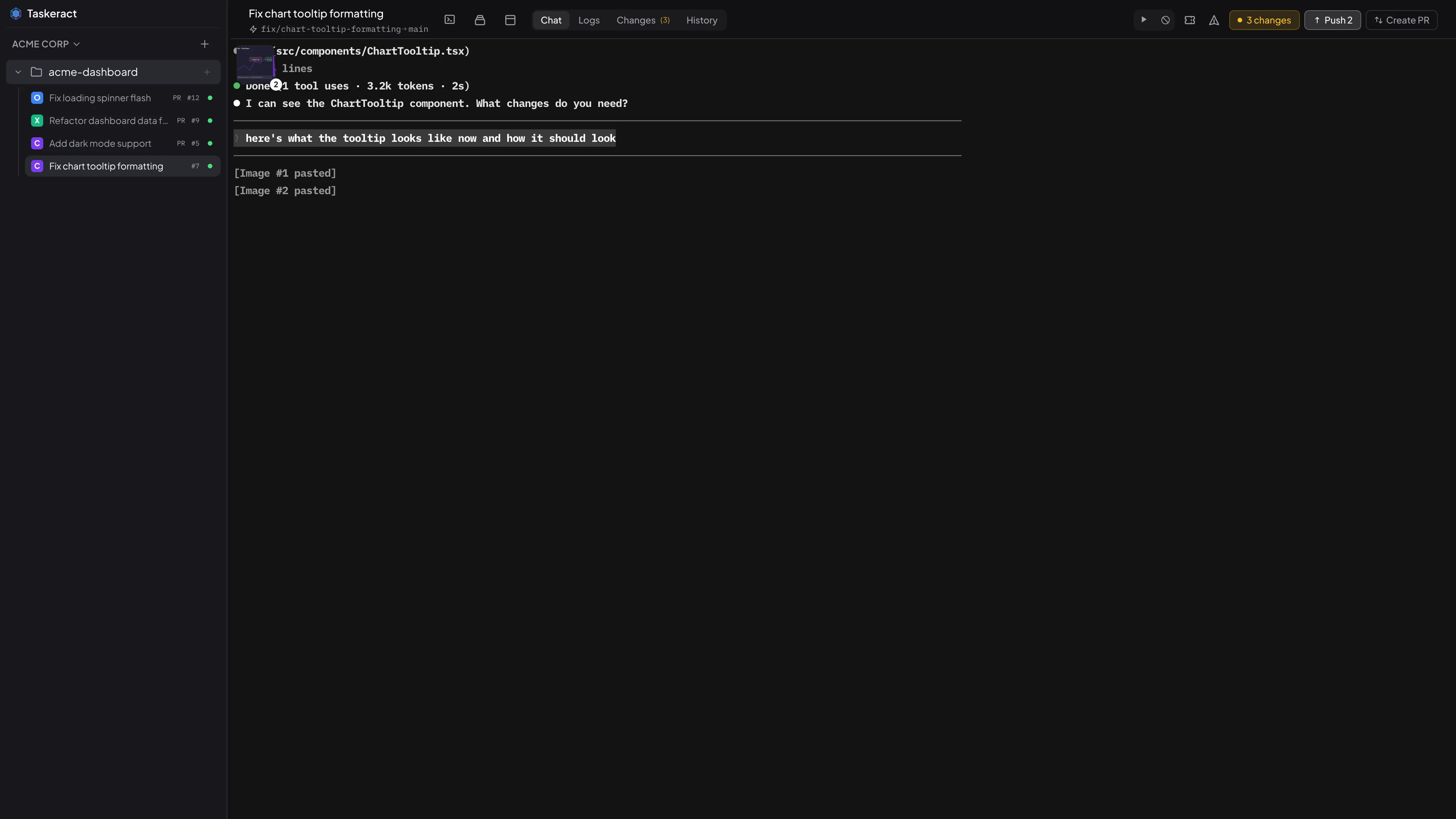
Image Viewer
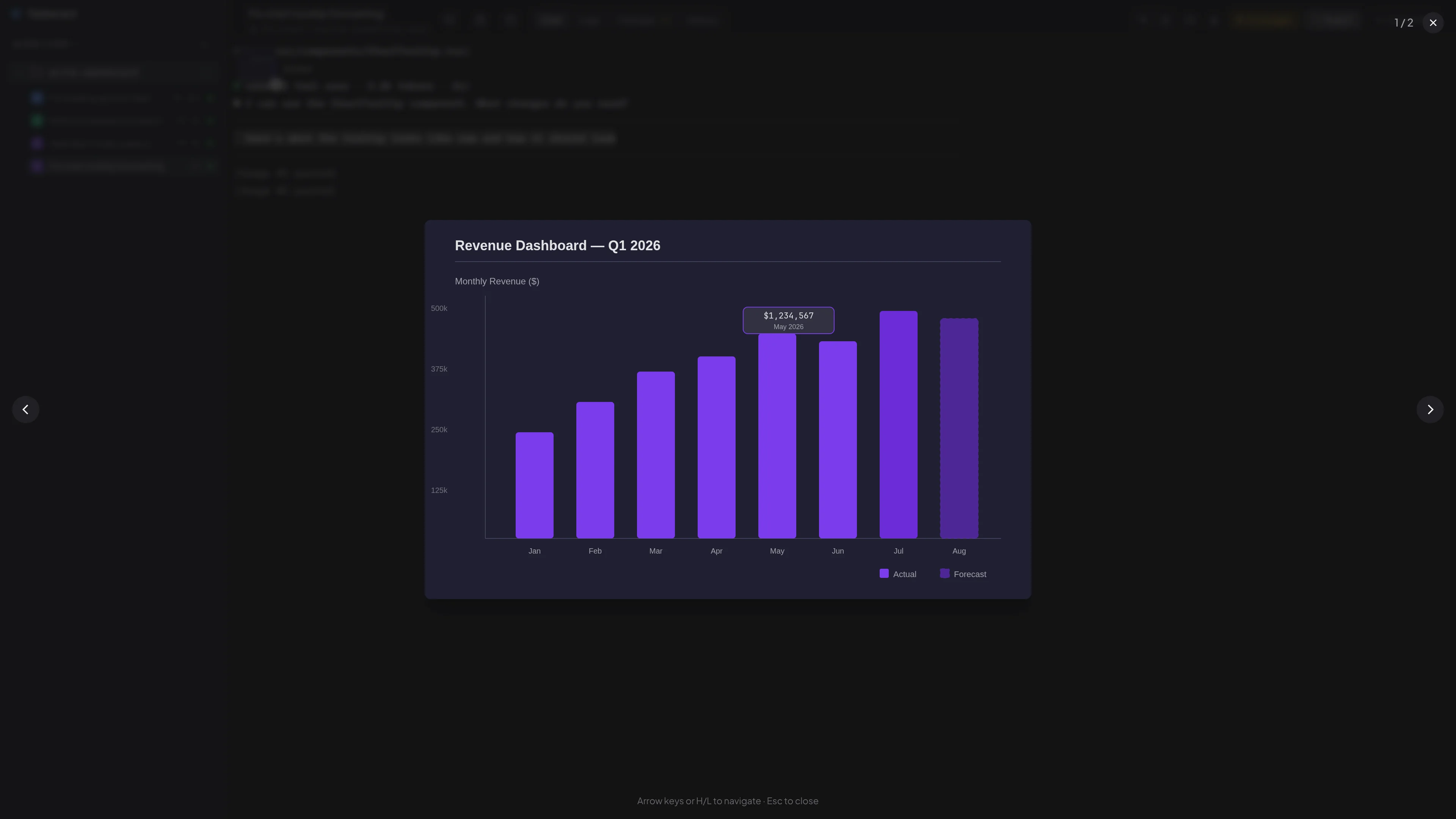
Click any thumbnail to open a full-screen lightbox. Use the arrow keys or on-screen navigation to move between images. Press Escape to close. The lightbox shows the current image index (e.g., "1 / 2") so you can keep track of multiple pastes.
Guest Agents
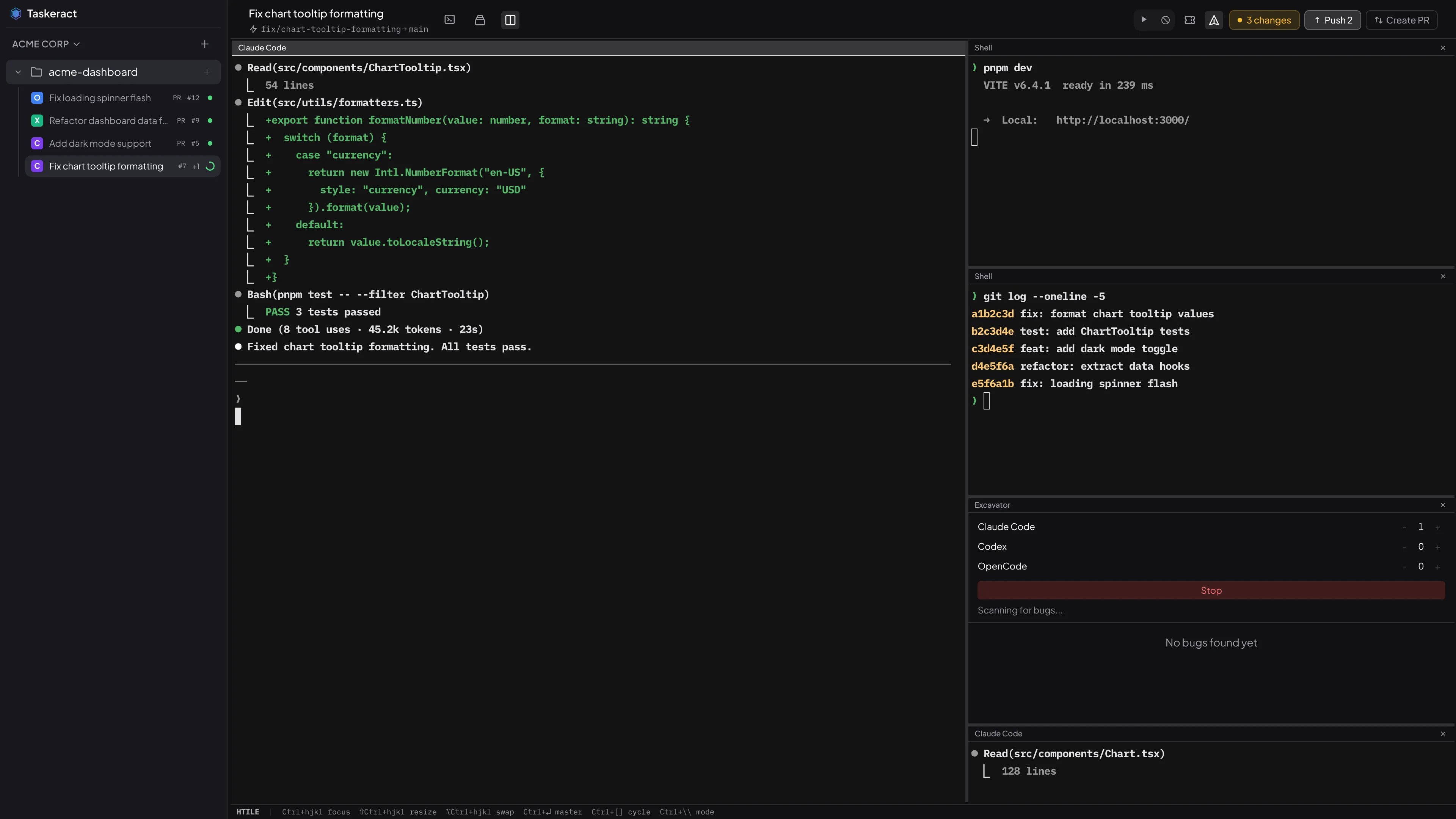
When an agent is stuck or you want a second opinion, you can launch additional agents inside the same session workspace. Guest agents see the same code and branch context as the primary agent but run independently in their own terminal tab. Guest agents are available only for strategies that provide an execution workspace.
To launch a guest agent, click the guest agent button (layers icon) to the left of the tab bar in the session view, or click the + button in the terminal tab bar. Select any available terminal agent from the dropdown. The guest agent starts fresh in the session workspace - it does not resume from the primary agent's conversation.
Each guest agent gets its own tab in the terminal area. Switch between the primary agent and guests by clicking their tabs. Close a guest tab with the × button to terminate it and remove the tab. When a guest agent exits on its own, its tab shows (exited) and you can press any key to relaunch it.
Guest agent tabs survive application restarts in an "exited" state. Stop Session terminates the primary agent and all guests. Delete removes everything. The sidebar shows a +N badge when a session has active guest agents, and the session's status indicator reflects the highest-priority state across the primary and all guests.
Deleting Sessions
Right-click a session in the sidebar and choose Delete. Taskeract performs a safety check before deleting:
- If the session's workspace has uncommitted changes, you'll see a warning with the number of affected files.
- If the session's branch has not been merged into the base branch and there is no open pull request, you choose whether to also remove the remote branch or keep it.
- If the session has an open pull request, the remote branch is automatically preserved so the PR remains valid.
- If the branch has already been merged, the remote branch is automatically cleaned up.
Deletion is never blocked - warnings are informational so you can make an informed choice. When you confirm, the session is soft-deleted: its workspace and local branch are removed, and the session record is preserved so it can be restored later.
Restoring Sessions
Soft-deleted sessions can be restored from the Deleted tab in Project Properties. Each deleted session shows its title, agent type, branch name with a status badge (local, remote, or gone), and any associated pull request.
Each deleted session has History and Recording buttons so you can inspect its terminal output or replay the full recording without restoring it. The history view includes full search (/) and copy (v + y) support, and the recording view supports Continue From Here to create a new child session from the selected point.
Click Restore to bring a session back. Taskeract recreates the workspace from the existing branch - whether it still exists locally, only on the remote, or needs to be created fresh - and the session reappears in the sidebar.
Permanent Deletion
From the same Deleted tab, click Delete Forever to permanently remove a session. This deletes the database record and all associated messages, and removes any remaining local or remote branches. If the branch has not been merged and there is no open pull request, you choose whether to remove the remote branch or keep it. This action cannot be undone.